Polls and Quizzes Now Live Inside Your Slides
October 4, 2026
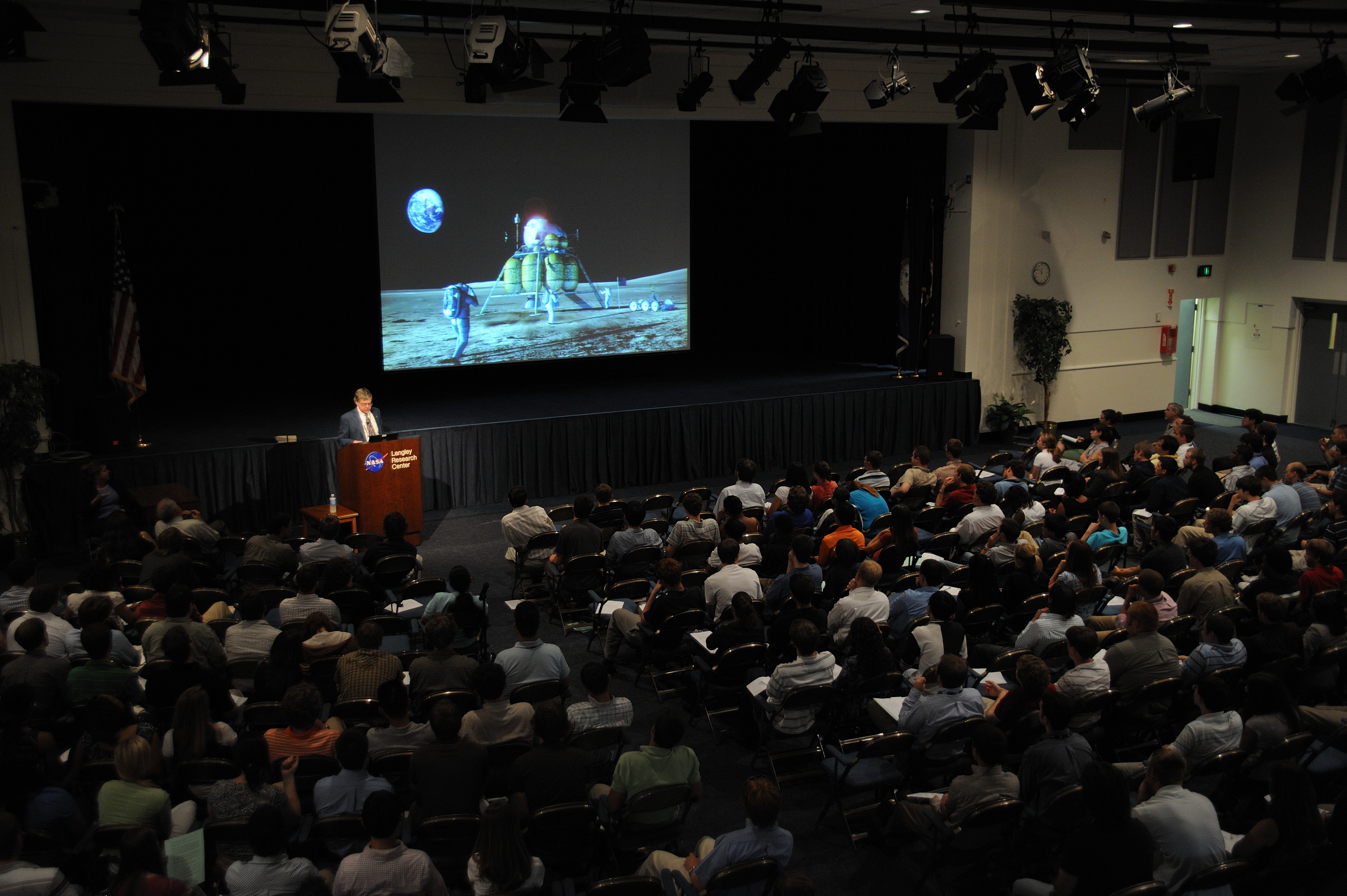
You've probably been here. You finish your talk, ask "Any questions?", and the room goes quiet. Someone looks at their phone. You say thanks and sit down, not quite sure what landed.
PPTX.ai can now help you ask the room something while you're still talking. A poll or a quiz is just another slide in your presentation. When you get to it, everyone answers on their phone, and the results appear on the screen behind you.
Polls and quizzes: what's the difference?
A poll asks what people think. There's no right answer and nobody gets a score. "Which topic should we start with?" "On a scale of 1 to 10, how ready do you feel for the new system?"
A quiz has a right answer. When you reveal it, everyone sees what it was, and a leaderboard keeps track of who's getting them right. It works well in a training session, a class, or a friendly round at the end of a team meeting.
The kinds of questions you can ask
Multiple choice is the one everyone knows, but there are more:
- Multiple choice. Pick one answer from a list.
- True or false.
- A number. "How many people work in our Boston office?" In a quiz, you can accept answers that are close enough.
- A typed answer. People type a word or a short phrase. In a quiz, you can list other spellings you're happy to accept.
- A slider. People drag to a value between two ends, like 1 to 10.
- Put in order. Arrange a few items, such as the steps in a process or events by date.
- Match the pairs. Connect each item on the left with its partner on the right.
- Word cloud (polls only). Everyone types a word or two, and you see which ones came up most.
Adding them to your presentation
The easiest way is to ask. In the studio, type something like "Add a quick poll after the third slide asking which part of the plan people are most worried about," and the assistant writes it and puts it in the right place. You can ask for a whole presentation this way too: "Five slides on our new expense policy, then a short quiz to check everyone got it."
If you'd rather do it yourself, press + Poll or + Quiz, choose the type of question, and fill it in. The preview updates as you type, and nothing changes until you save. You can fix a typo in an answer, change which answer is correct, or move a question up or down without asking the assistant for anything.
On the day
When you're ready, open your presentation and press Open presentation lobby. Your screen shows a link and a QR code. People point their phone camera at the code, sign in with their email, and tap Join. The first time, they'll get a short code by email to type in. You'll see their names appear as they arrive.
One thing to know: everyone has to join before you press Start presentation. Once you start, nobody new can get in. So put the lobby up a few minutes early, while people are finding their seats.
After that, you move through your slides with Next and Previous. When you reach a question, people answer on their phones. On a poll, the responses fill in as they come. When you're ready, press Reveal results.
- On a quiz, that shows the correct answer and updates the leaderboard.
- On a poll, it shows how the room answered: how many picked each option, the average on a slider, or the words that came up most in a word cloud.
If a slide has speaker notes, you'll see them under it on your screen. Your audience won't.
What your audience sees
On a phone, a question fills the screen, with answers big enough to tap with a thumb. People answer, see "Your answer was recorded," and look back up at you. There's nothing to download.
A few ideas to start with
- Open with an easy poll. It gets everyone joined and comfortable answering before you say anything important.
- Put a quiz question right after the tricky part. If half the room gets it wrong, you know to go over it again before moving on.
- End with a word cloud. "In one word, how did today go?" makes a good last slide, and you'll learn more from it than from "Any questions?"
- Keep questions short. One or two lines read well on a phone and on the big screen.
Ready to try it? Create a presentation and add your first poll.